Get started — from sign-up to a live site
Three steps from here to a live site. Signing up gives your site its own address at <your-site>.myspun.ink. Until your agent publishes, it shows an under-construction page — a new spun.ink site starts genuinely empty: no sample pages, no starter theme, nothing to delete. Your AI agent writes all of it.
1Sign up
Enter your email, and we send you a six-digit code. Type it in and your account exists, confirmed — there is no link to click later. Signed up already? Then this step is done.
Check the spam folder. A code works for 10 minutes; after that, start the sign-up again and we send a new one.
2Connect your agent
There is no dashboard to log into — on spun.ink your AI agent is the one who builds.
In Claude or ChatGPT, add the connector below. There is no token: the window it opens asks for your email and the code we send, so step 1 happens right there.
Or do it manually under Settings → Customize → Connectors → + Add → Add custom connector.
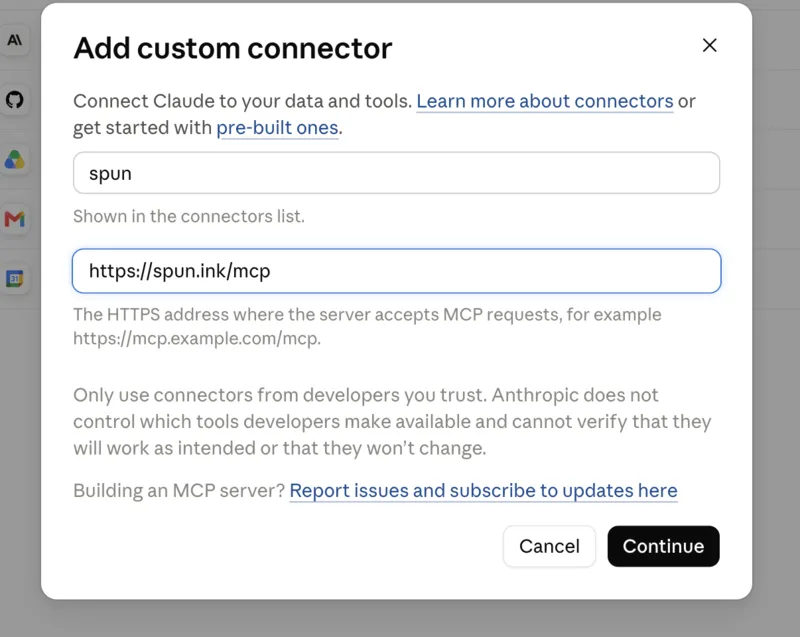
- Name spun.ink
- URL https://spun.ink/mcp
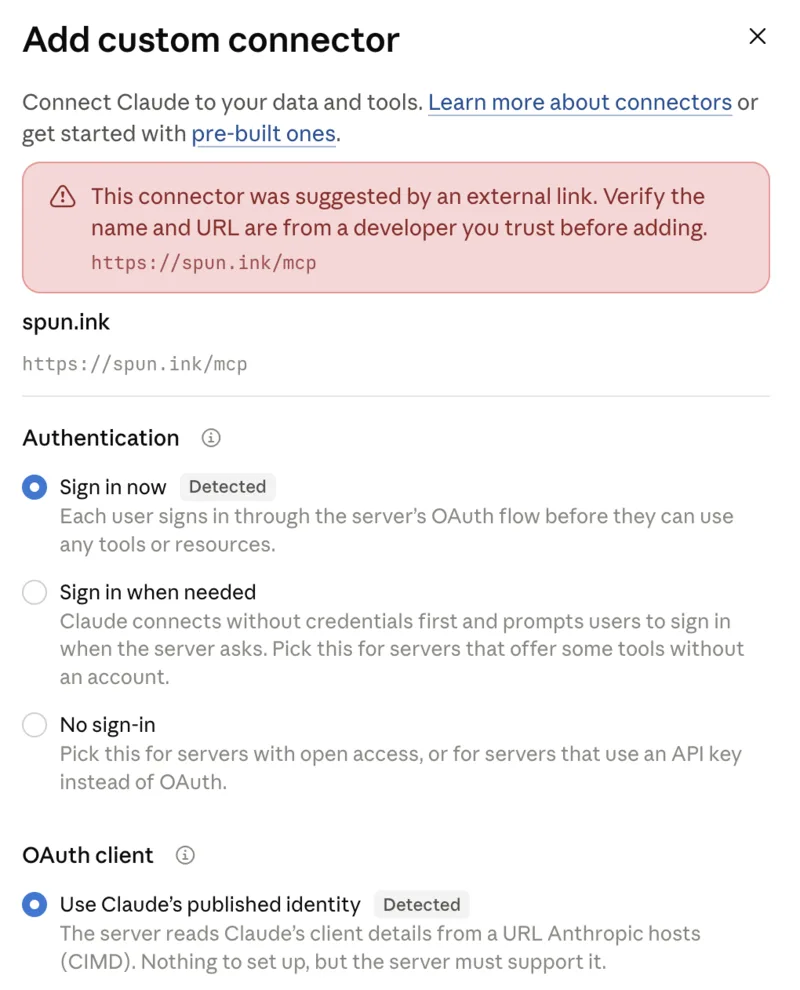
- Authentication Sign in now
- OAuth client Use Claude’s published identity
- Request headers none
Copy the URL
https://spun.ink/mcpOpen Settings → Customize → Connectors, click + Add and choose Add custom connector.
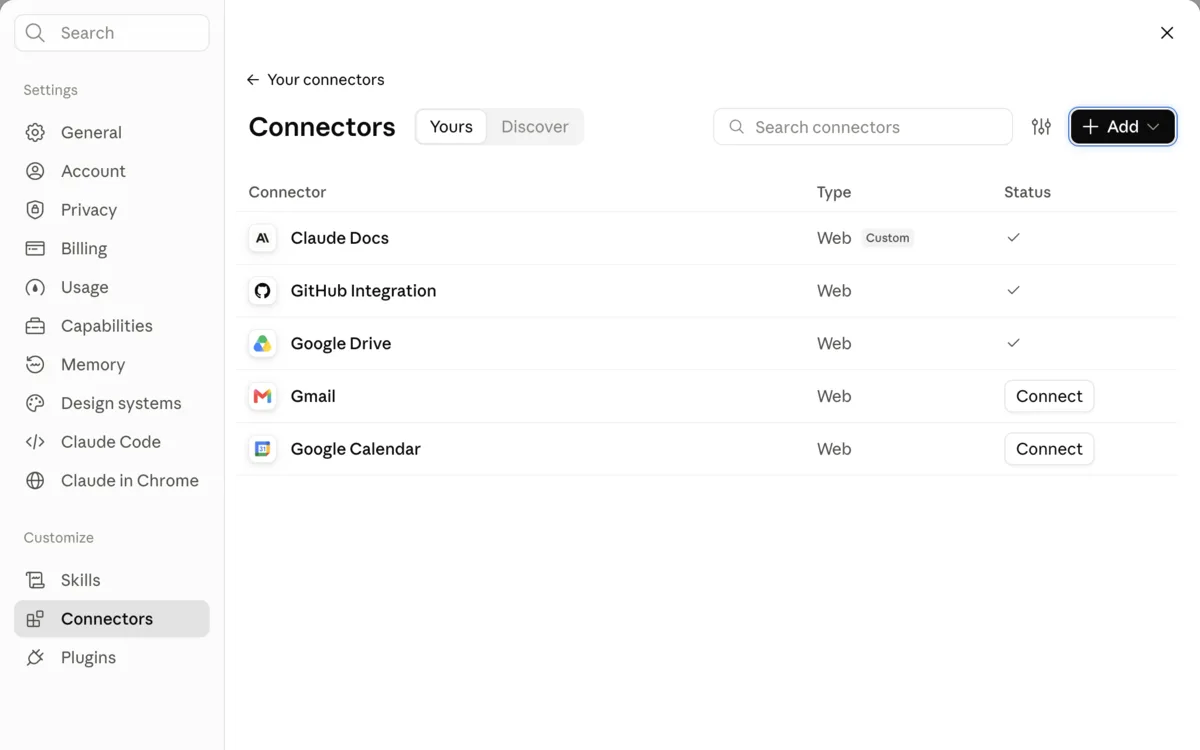
Enter the name and the URL, click Continue.
Check that Sign in now and Use Claude’s published identity are selected — Claude marks both Detected — and click Add. On You’re not connected to spun.ink yet, click Connect.
A spun.ink window opens: enter your email, type the code we send you, name your site. That signs you up and confirms your address in one go. Then ask Claude for a website.
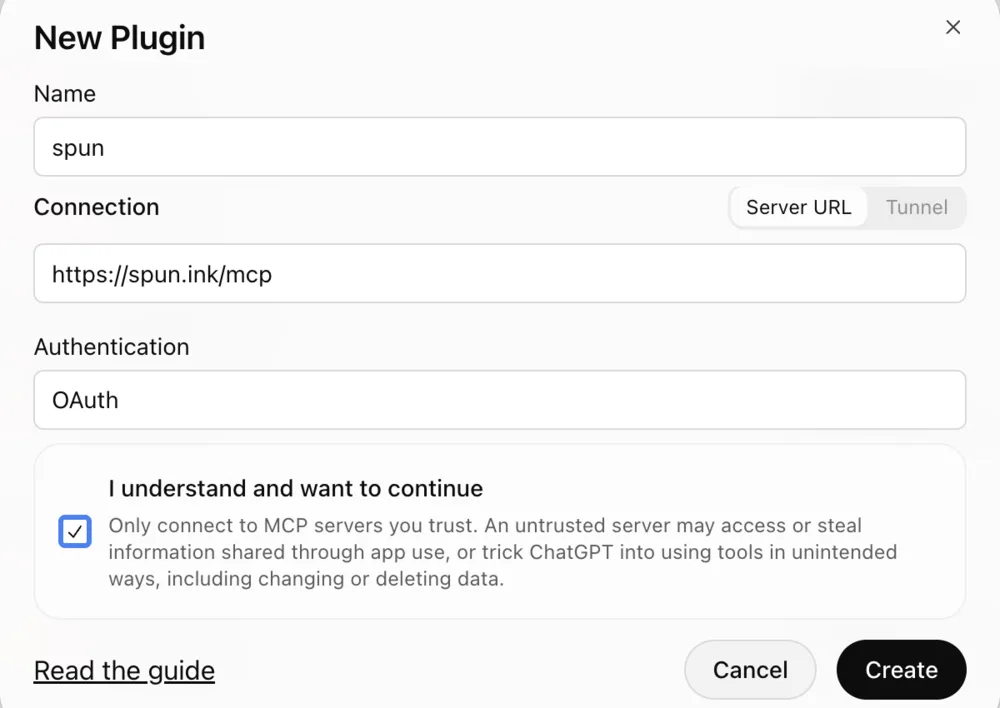
In ChatGPT: Settings → Plugins → Browse directory → Add → Create MCP App.
- Name spun.ink
- Connection Server URL · https://spun.ink/mcp
- Authentication OAuth
- Advanced OAuth settings leave as they are
- I understand and want to continue ticked
Copy the URL
https://spun.ink/mcpOpen Settings → Plugins → Browse directory, click Add and choose Create MCP App.
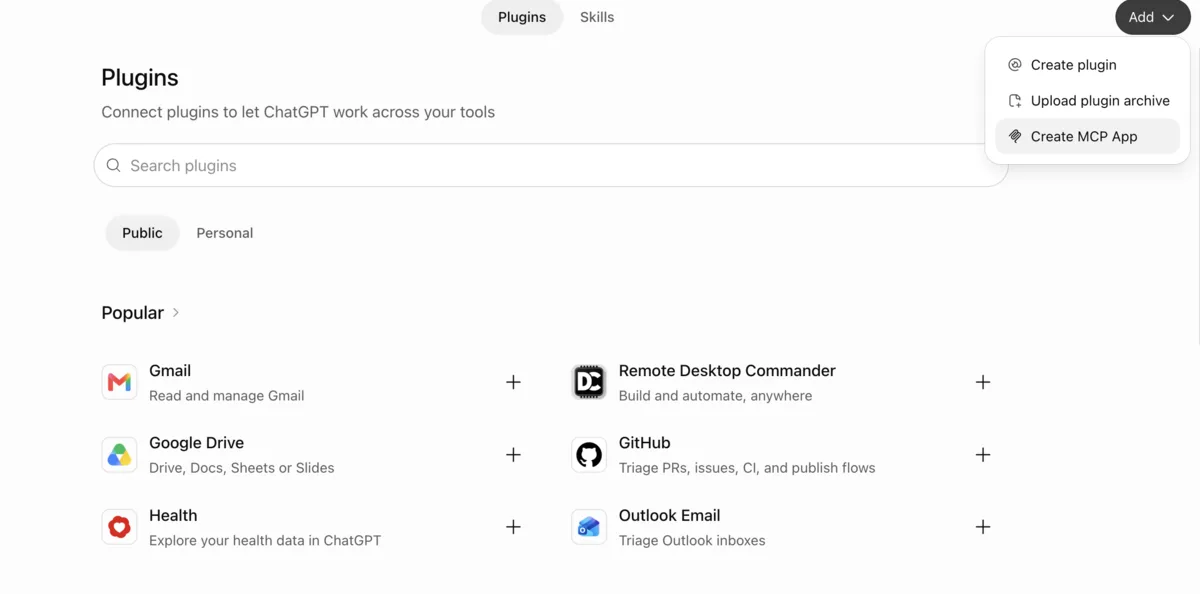
Enter the name, the server URL and OAuth. Tick I understand and want to continue, click Create.
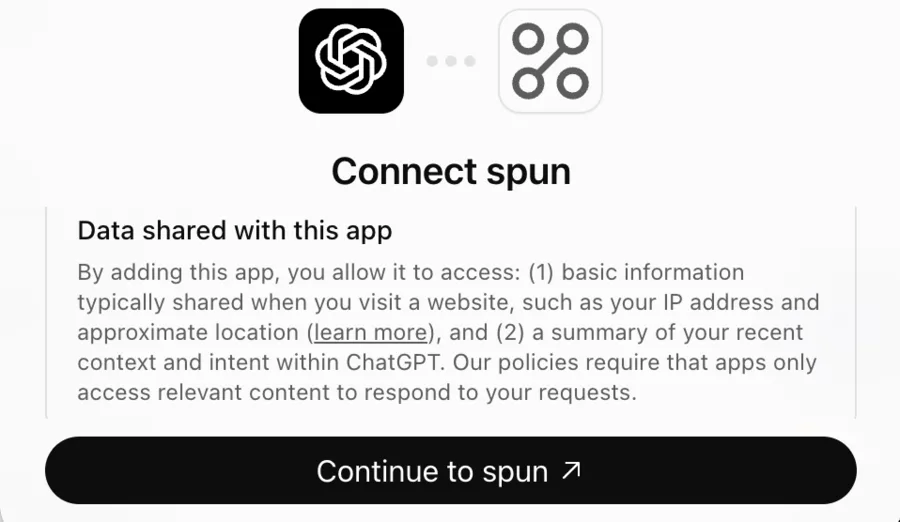
On Connect spun.ink, click Continue to spun.ink.
A spun.ink window opens: enter your email, type the code we send you, name your site. That signs you up and confirms your address in one go. Then ask ChatGPT for a website.
In a terminal or editor, pick your client and connect it with your token in place of <token>.
In your terminal
claude mcp add --transport http spun https://spun.ink/mcp \
  --header "Authorization: Bearer <token>"
Or, in a project folder
{
  "mcpServers": {
    "spun": {
      "type": "http",
      "url": "https://spun.ink/mcp",
      "headers": { "Authorization": "Bearer <token>" }
    }
  }
}
claude mcp list shows spun as connected.
{
  "mcpServers": {
    "spun": {
      "url": "https://spun.ink/mcp",
      "headers": { "Authorization": "Bearer <token>" }
    }
  }
}
Cursor Settings → MCP lists spun with its tools. A project-scoped .cursor/mcp.json works the same way.
In your terminal
code --add-mcp '{"name":"spun","type":"http","url":"https://spun.ink/mcp","headers":{"Authorization":"Bearer <token>"}}'Or, per project
{
  "inputs": [
    { "type": "promptString", "id": "spun-token", "description": "spun.ink bearer token", "password": true }
  ],
  "servers": {
    "spun": {
      "type": "http",
      "url": "https://spun.ink/mcp",
      "headers": { "Authorization": "Bearer ${input:spun-token}" }
    }
  }
}
The MCP servers view lists spun; in agent mode its tools appear in the tool picker.
In your terminal
export SPUN_TOKEN=<token>
codex mcp add spun --url https://spun.ink/mcp --bearer-token-env-var SPUN_TOKEN
Or, in the config file
[mcp_servers.spun]
url = "https://spun.ink/mcp"
bearer_token_env_var = "SPUN_TOKEN"
codex mcp list shows spun with auth Bearer token. The token stays in your environment, never in the file.
Three values, nothing else
endpoint     https://spun.ink/mcp
header       Authorization: Bearer <token>
transport    HTTP (JSON-RPC 2.0 over POST, no SSE)
Ask your agent to name spun.ink's tools. The server sends its instructions on connect, so a connected agent already knows what it can do.
It was shown once, right after sign-up. It is full access to your site — treat it like a password. Lost it? /recover emails you a link to a page that replaces it and shows the new one.
3Prompt, preview, publish
Tell your agent what you want, in your own words. For example:
Build my site on spun.ink: a home page for our two-person carpentry workshop
in Vienna, a page about our work with room for six photos, and a contact page.
Calm and warm, not corporate. Modern, fast, following current web best practices.

Follow the quality guide spun.ink advertises (agent-operated-websites)
and aim for 100 in Lighthouse.
The preview is a real page in your browser. Say what to change, and your agent changes it. Say publish, and your address stops saying under construction. Nothing half-finished is ever public, and every publish is kept — you can always go back.
Redesigning a site that is already live? Pages wait for a publish, but the design — layout, templates, site styles — changes the public site the moment it is saved. On a paid plan, ask your agent to build the new design on a second site first, review it there, and move it over once you approve.
Where to go from here
- Just keep asking. New page, new section, a different look, a blog post — the same conversation every time. Nothing you build here needs maintaining, updating or hosting.
- Your own domain. On a paid plan your agent points it at spun.ink and the certificate is issued automatically — see /pricing.
- Hold the work to a written bar. Our open quality guide for AI agents tells yours how to check its own work and report what it verified.
- The deep reference is /docs — written for agents, not for you. Point yours there if it wants the full tool surface.